
Instructions
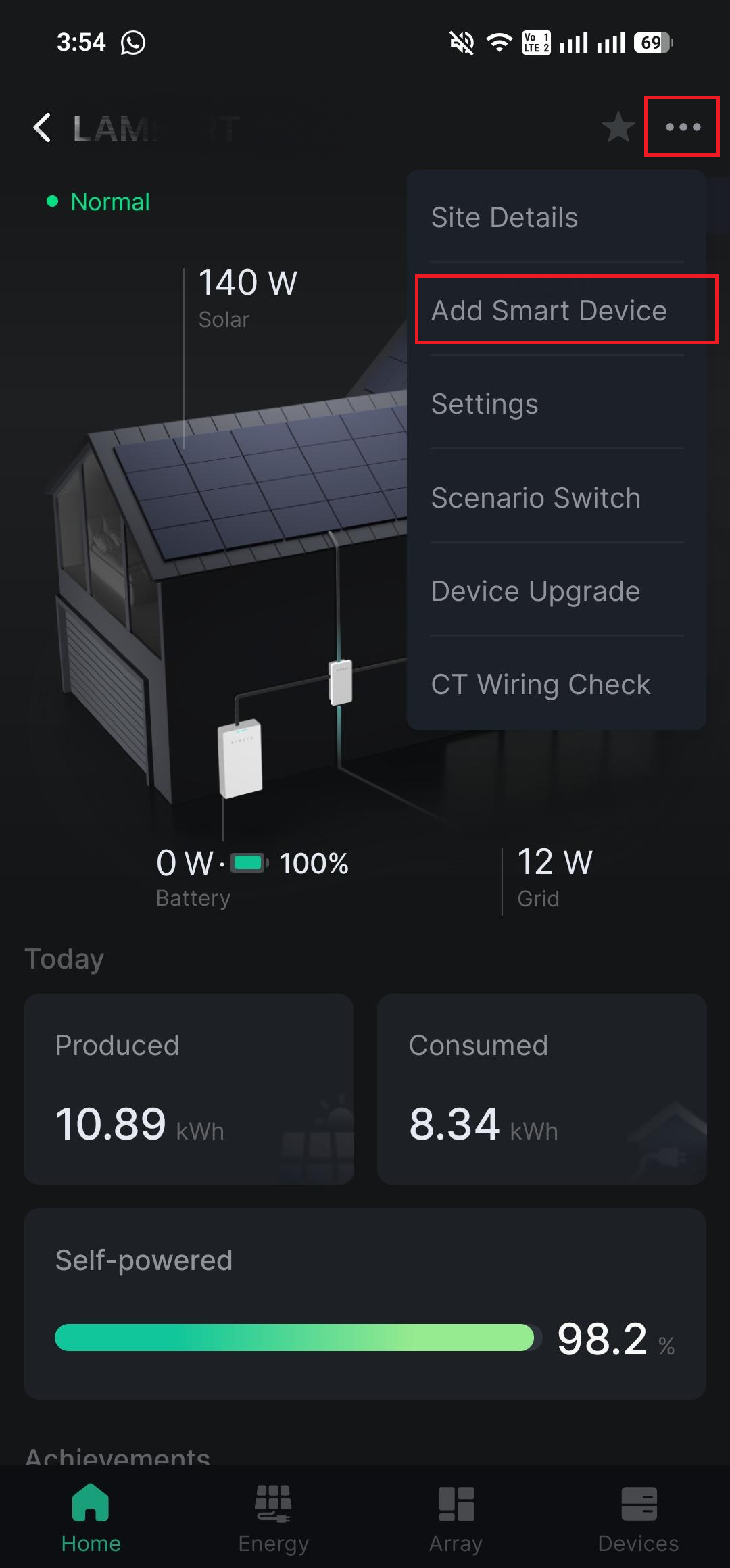
- Click on the ... at the top right of the app.
- Select Add Smart Device.
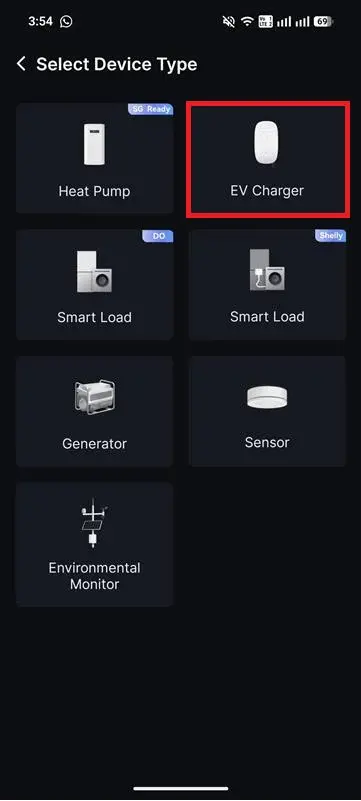
- Select EV Charger.
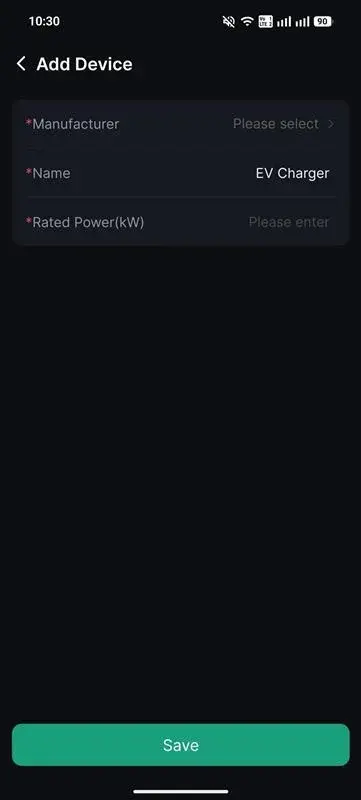
- Select Atmoce under Manufacturer, detect the device, and click Save.
- A WIFI connection needs to be configured at the EV charger prior.
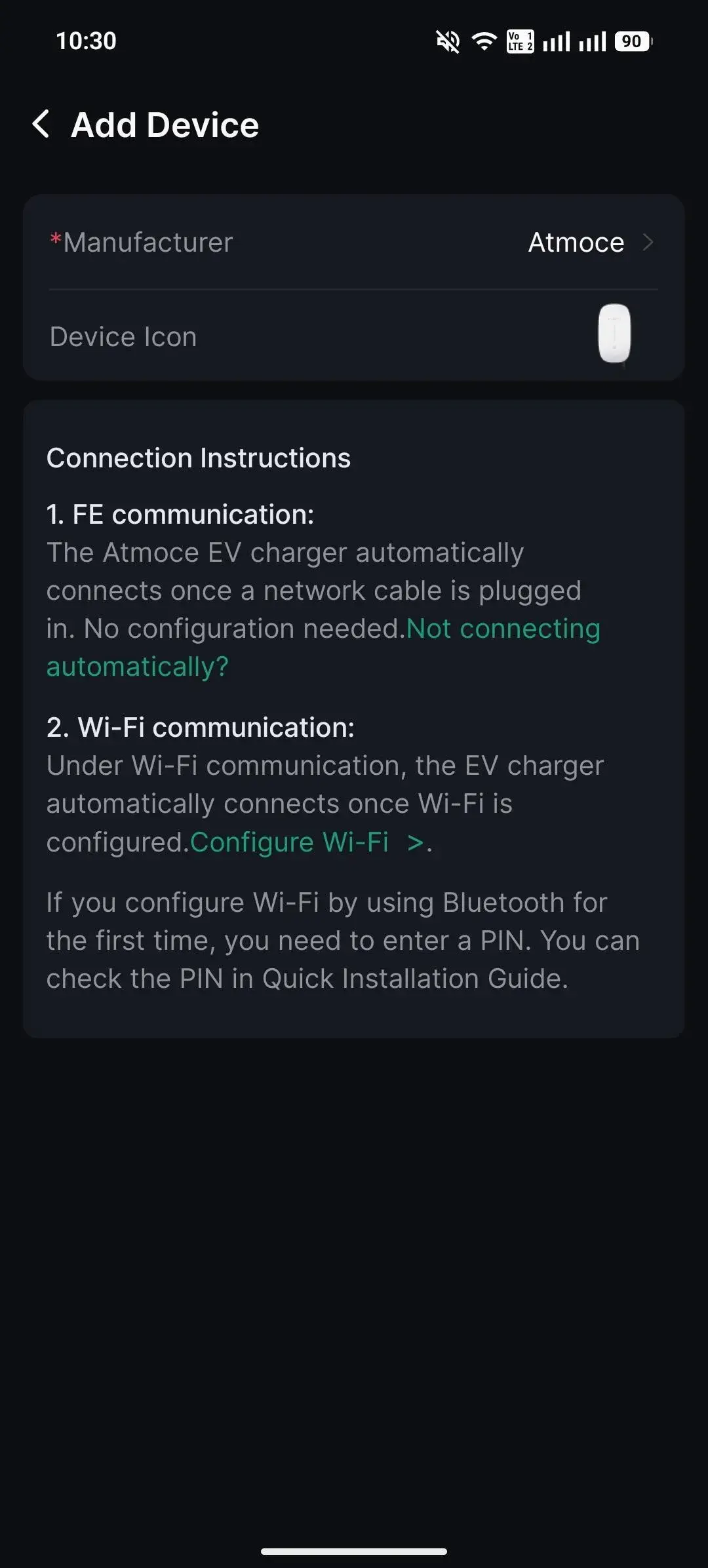
- A WIFI connection needs to be configured at the EV charger prior.
Operation modes
4 operation modes are available for controlling the EV charger. They are:
- Manual Start/End Charging,
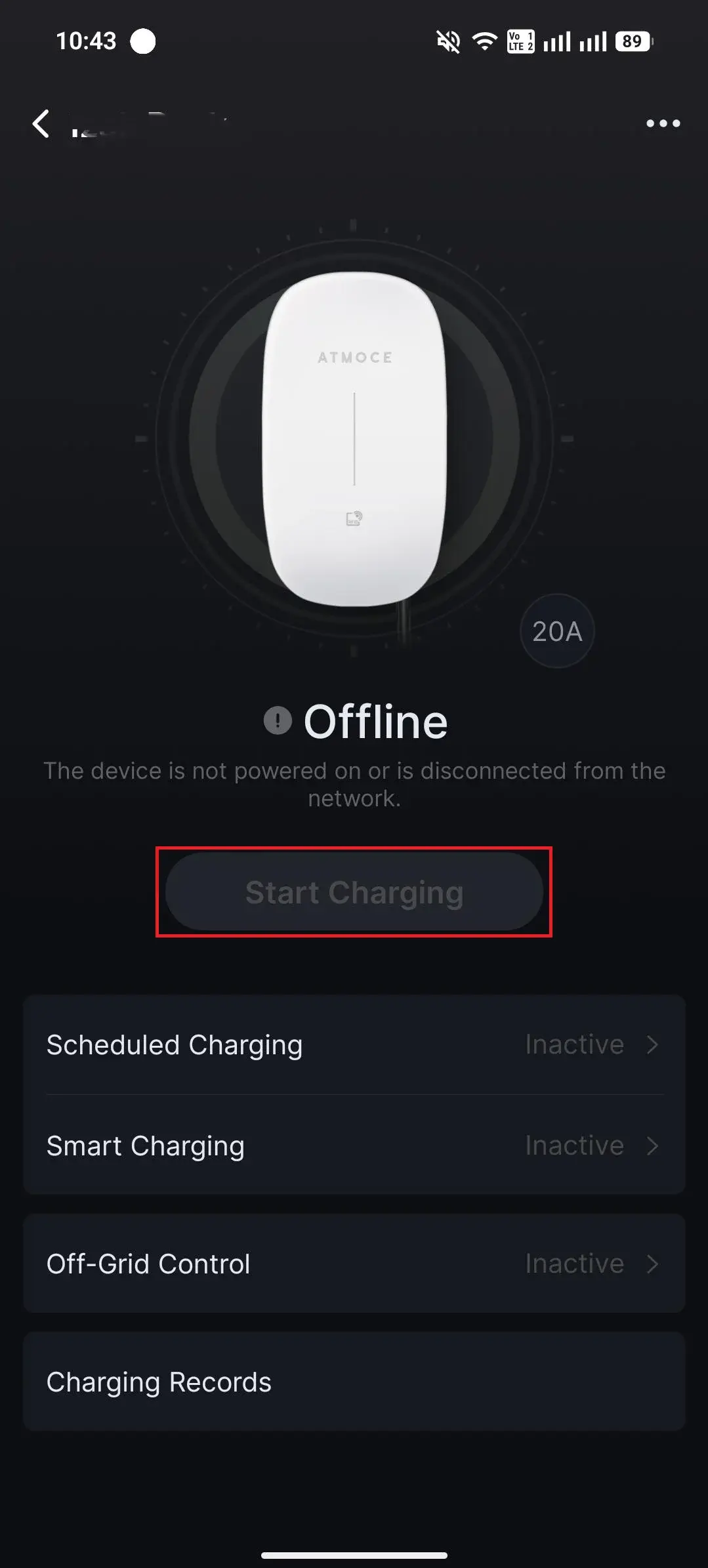
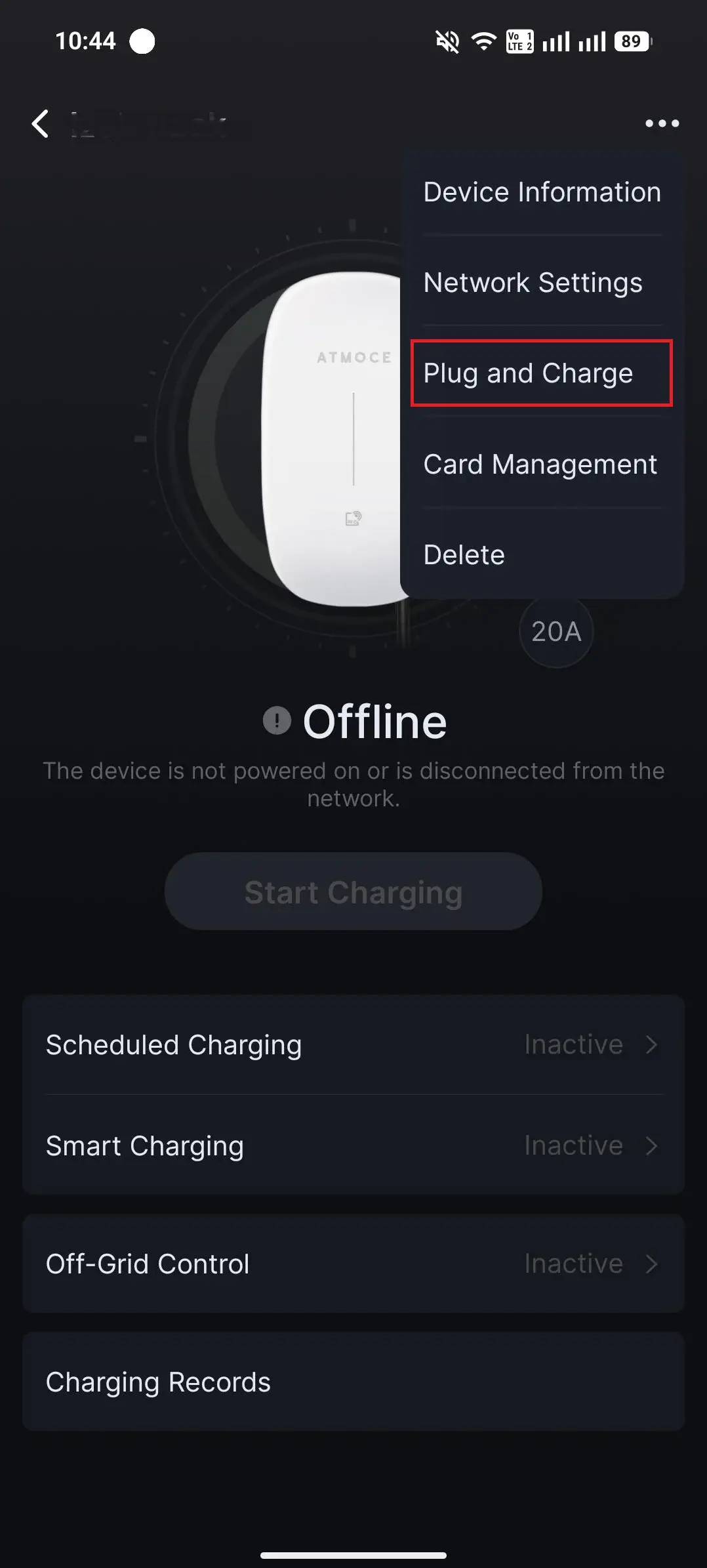
- Plug & Charge.
- Click the ... at the top right.
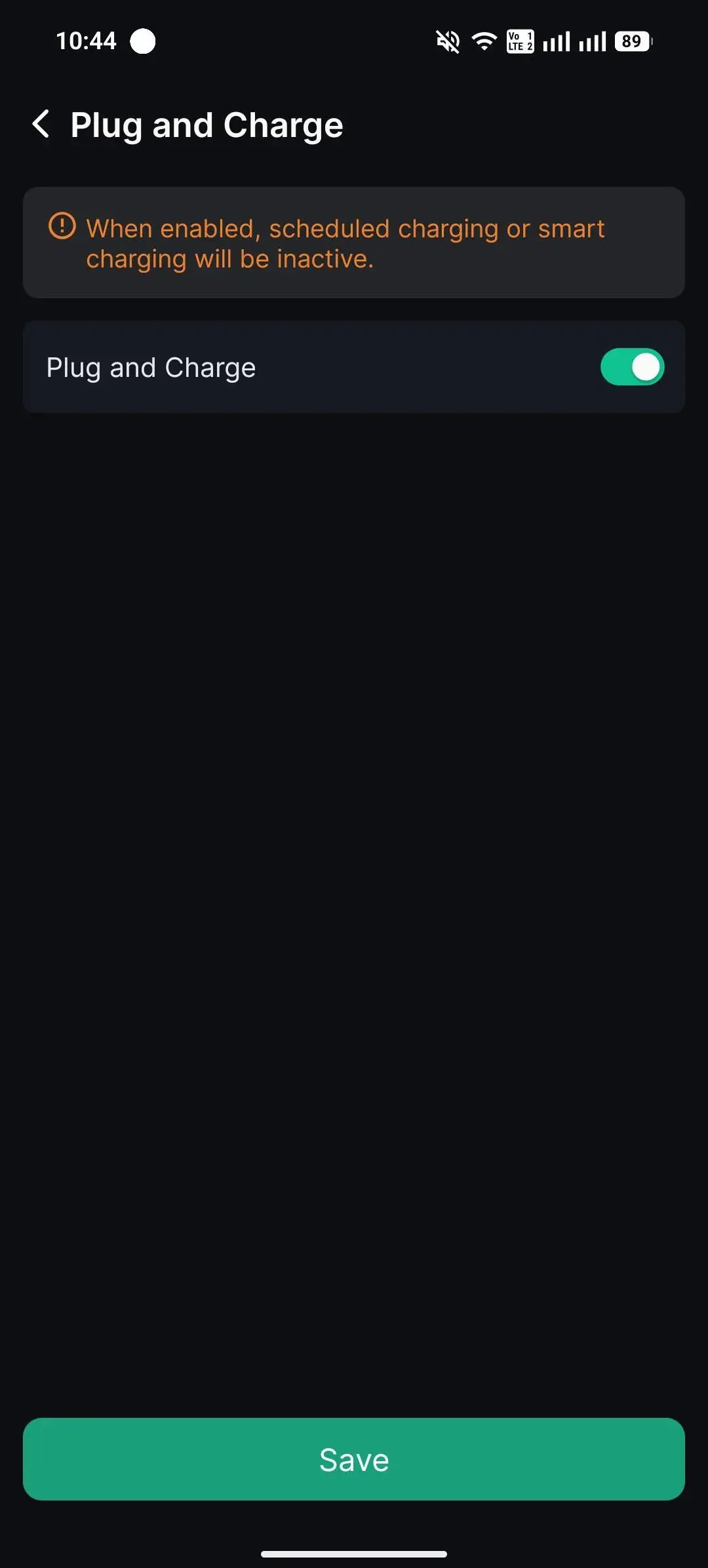
- Select Plug and Charge.
- Activate and click Save.
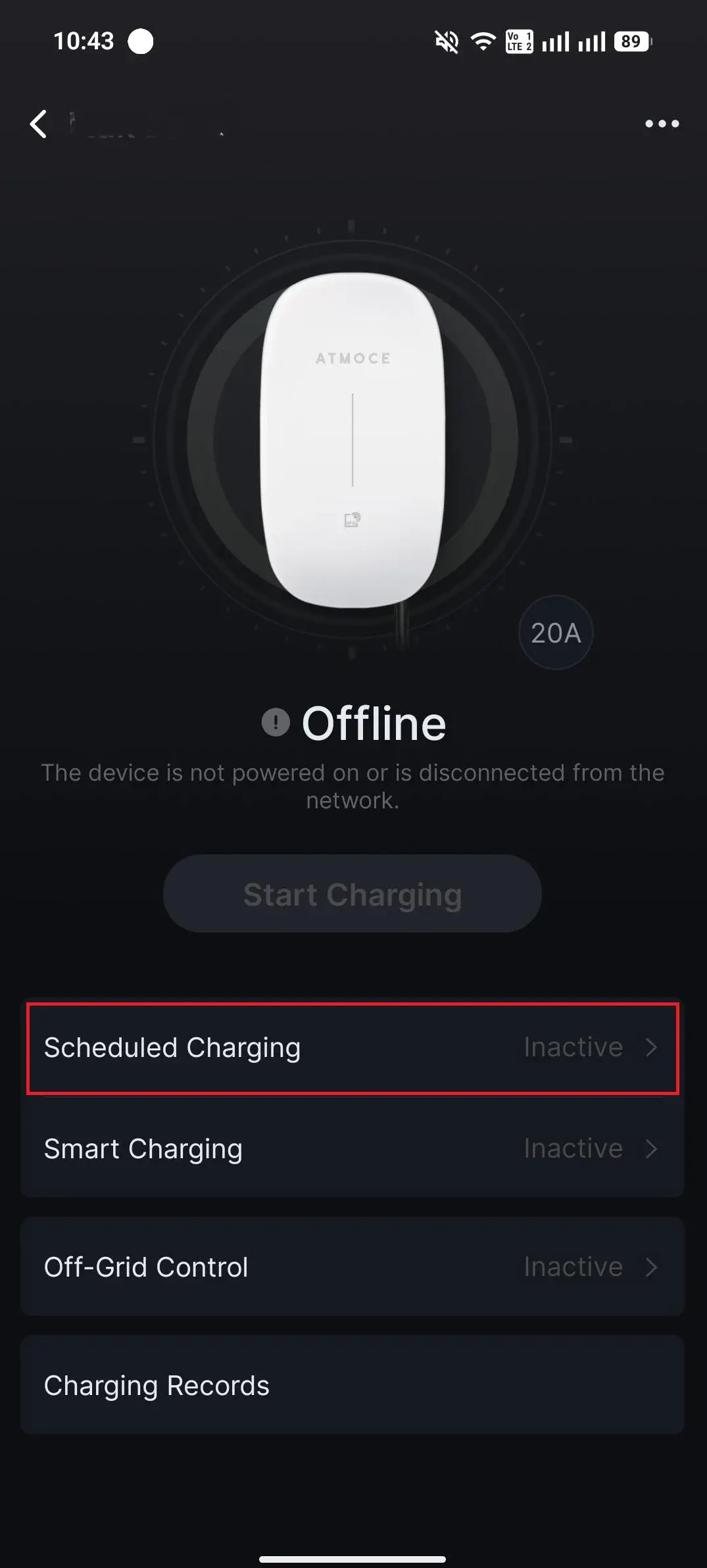
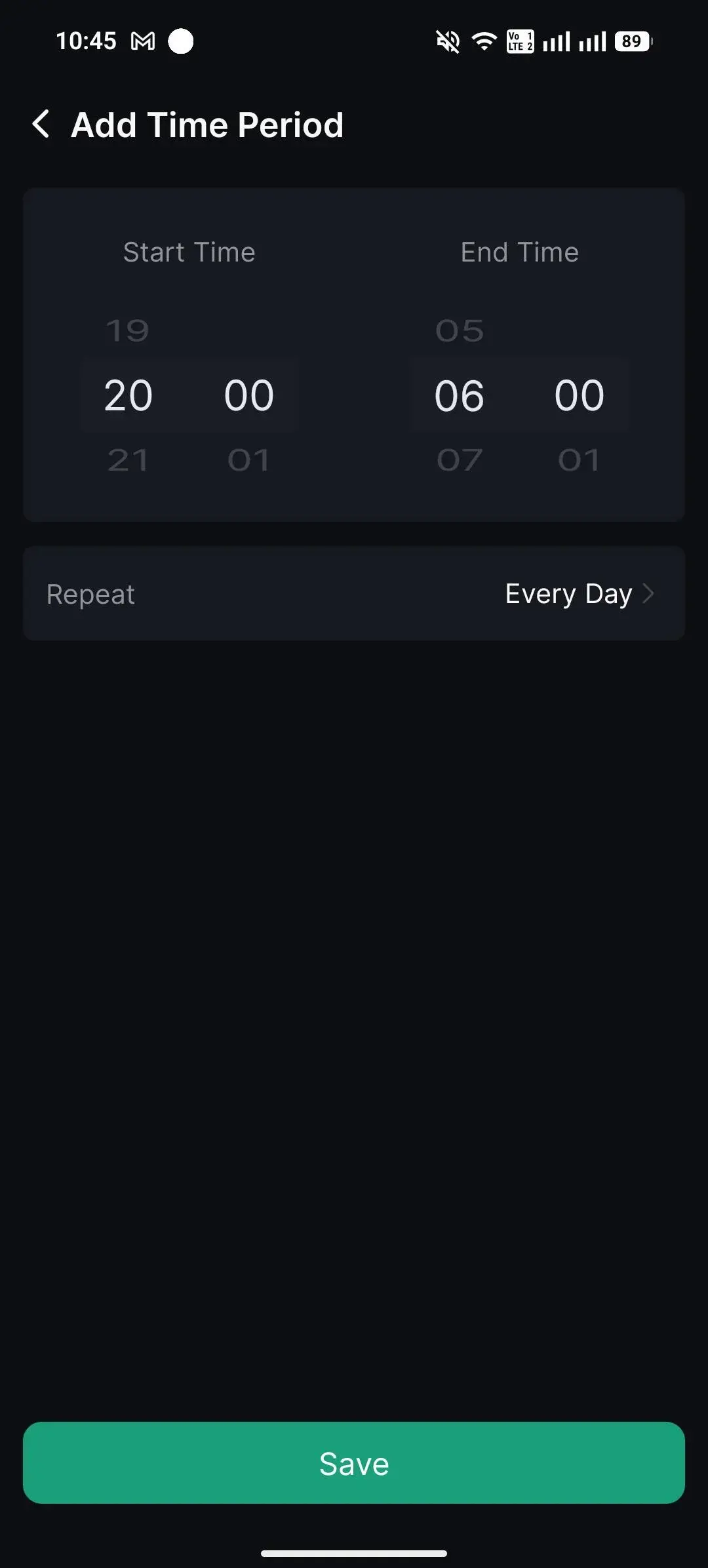
- Scheduled Charging.
- Select Scheduled Charging.
- Click the + icon.
- Add in desired schedule and click Save.
- Smart Charging
-
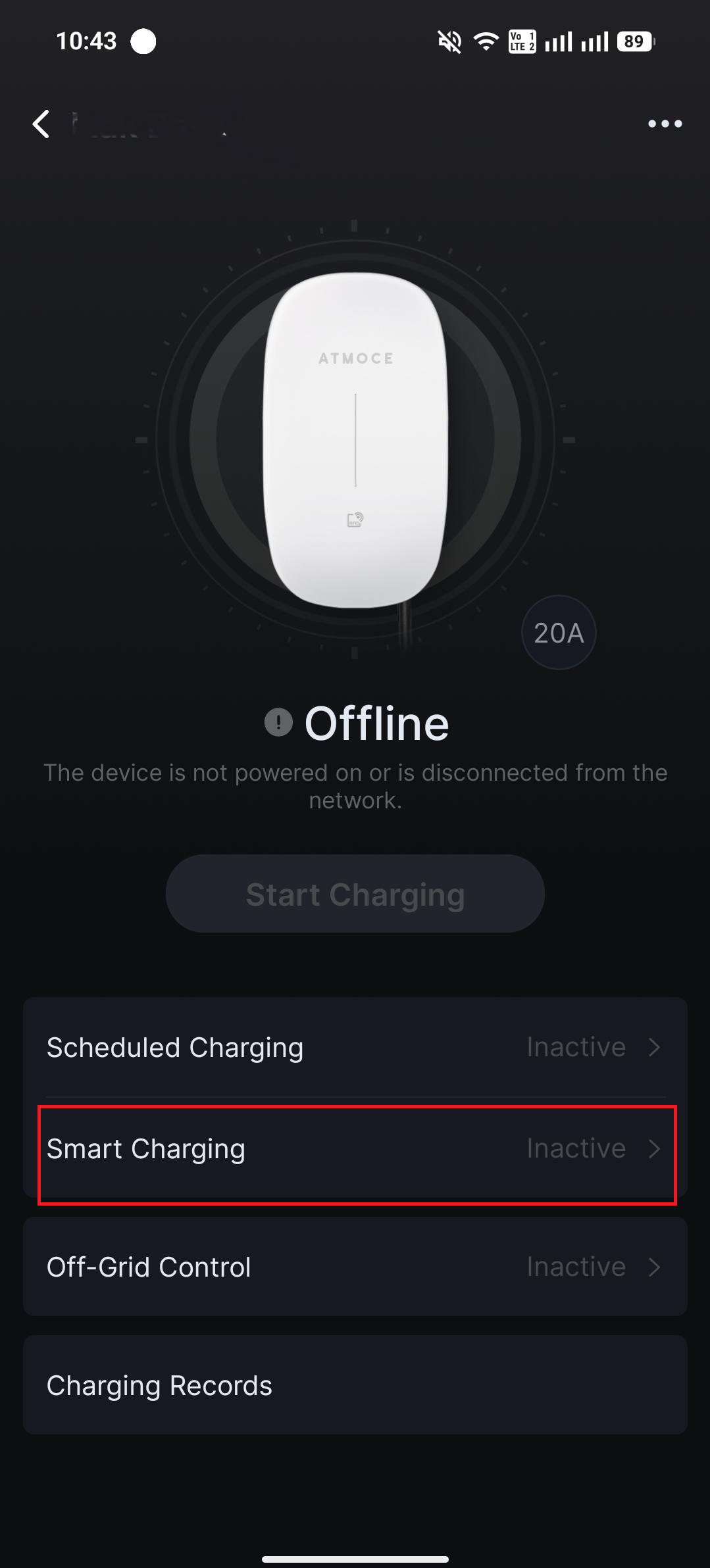
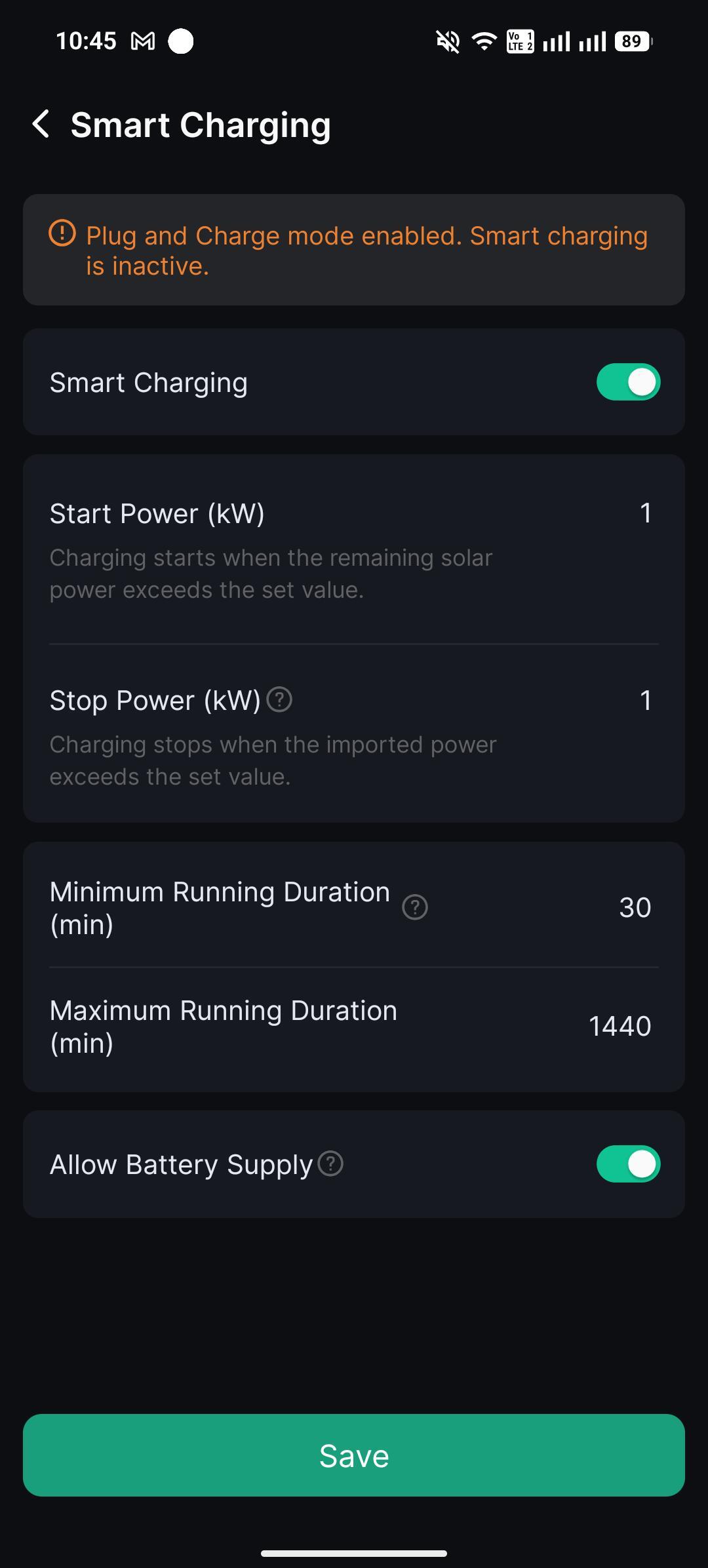
- Select Smart Charging.
- Activate, select Start Power, Stop Power, Minimum Running Duration, Maximum Running Duration, Allow Battery Supply (if required), and click Save.
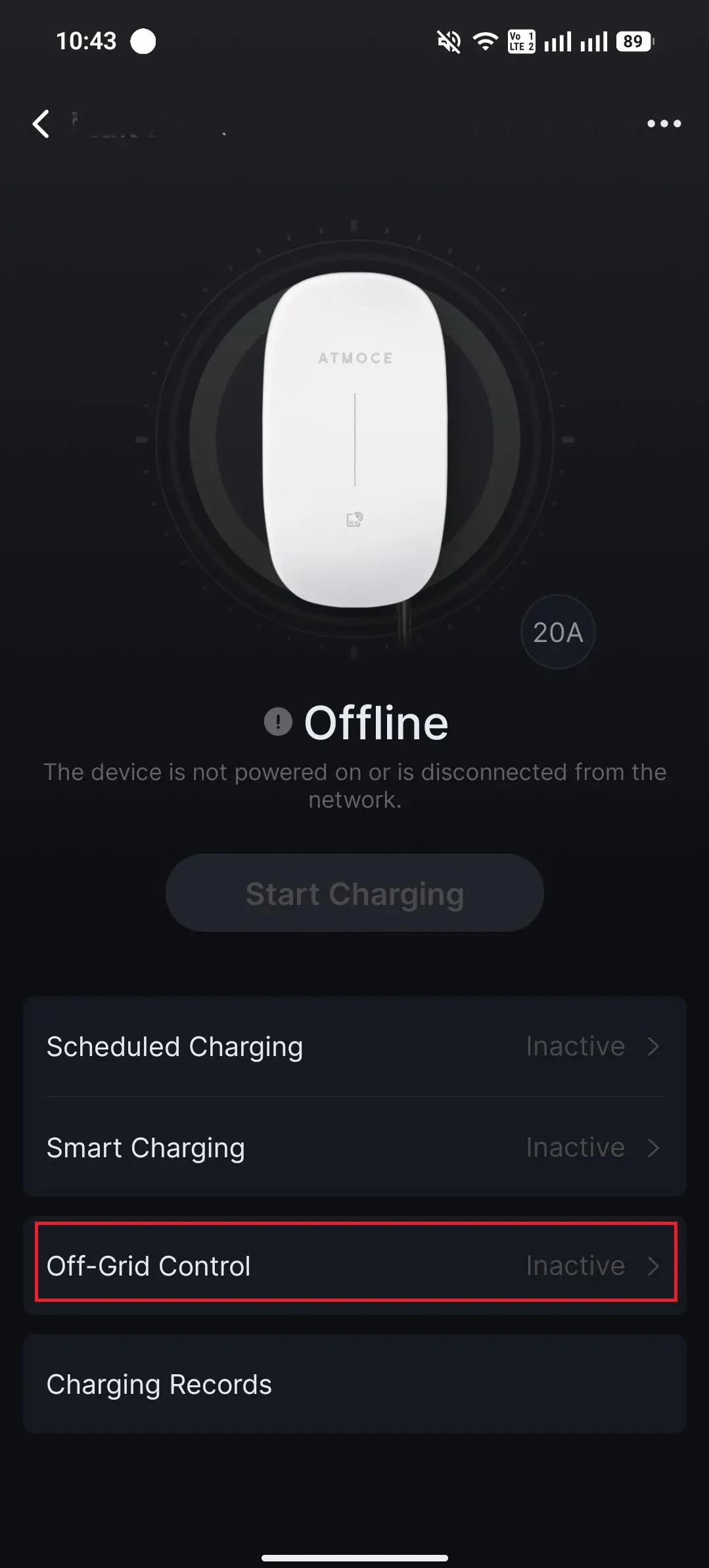
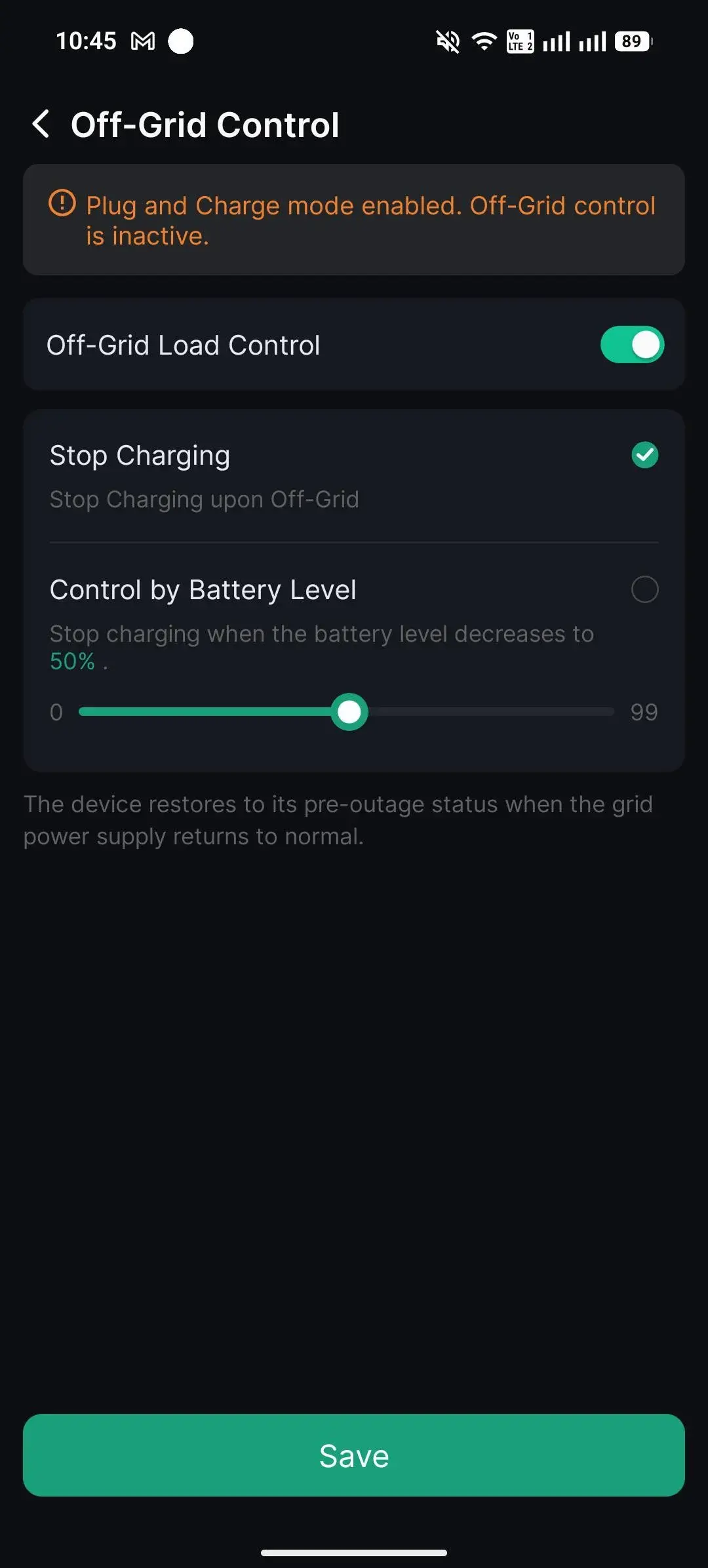
In addition, off-grid control can be configured as necessary.
- Select Off-Grid Control.
- Activate, select Stop Charging (if required), Control by Battery Level (if required) and click Save.
Information in this article was current at the time of publication or last update. Product specifications, software, firmware and procedures may change. Please refer to the latest ATMOCE documentation before proceeding.