---
title: Adding a Shelly Smart Device
description: How to add and configure a Shelly plug to your system via the Atmozen app
---
[Skip to content](https://support.atmoce-au.com/knowledge-base/adding-smart-devices#main-content)
English - United Kingdom
Show submenu for translations
[](https://www.atmoce.com/au)
- [Home](https://support.atmoce-au.com/knowledge-base)
- [Atmoce Website](https://www.atmoce.com/au)
Open main navigation
Close main navigation
- [Home](https://support.atmoce-au.com/knowledge-base)
- [Atmoce Website](https://www.atmoce.com/au)
- English - United Kingdom
Show submenu for translations
- [Customer Portal](https://support.atmoce-au.com/tickets-view)
[Customer Portal](https://support.atmoce-au.com/tickets-view?hsLang=en-gb)
How can we help you?
- There are no suggestions because the search field is empty.
1. [Atmoce Knowledge Base](https://support.atmoce-au.com/knowledge-base?hsLang=en-gb)
2. [Commissioning](https://support.atmoce-au.com/knowledge-base/commissioning?hsLang=en-gb)
3. [Adding Smart Device](https://support.atmoce-au.com/knowledge-base/commissioning?hsLang=en-gb#adding-smart-device)
16 September 2026
# Adding a Shelly Smart Device
## Steps to add and configure a Shelly device on the Atmozen app
Before adding a compatible Shelly device to the Atmozen app, please ensure that:
1. The Shelly model is listed as a supported device in the Atmozen app,
2. The Shelly device is powered on and already added to the Shelly Smart Control app, and
3. The Shelly device and gateway are connected to the same 2.4 GHz WIFI network.
### Instructions
If multiple Shelly devices are being commissioned, power on and add them one at a time to prevent device identification issues.
1. Click on the **...** at the top right of the app.
2. Select **Add Smart Device**.
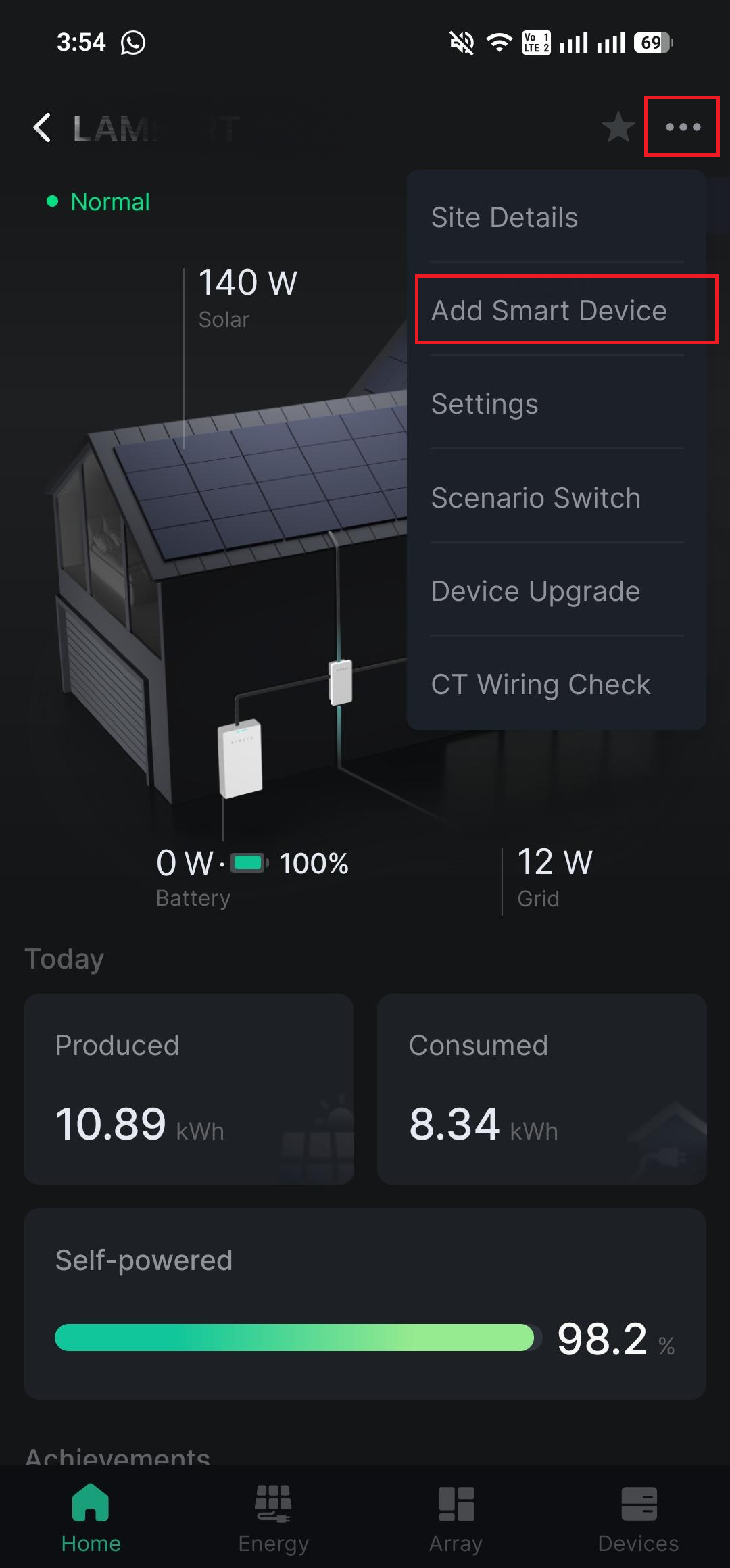
3. Select **Smart Load (Shelly)**.

4. Tick the **checkbox** and click **Next**.
1. If set up in the Shelly Smart Control app, the Shelly device will be recognised automatically.
2. If the Shelly device cannot be found, ensure the router does not enable
AP Isolation / Client Isolation / Guest Network.

5. Select the **detected device** to enter the required information.

6. Click on the **Device Icon** to choose the type of device you wish to control.
7. Click **Save**.
### Operation modes
3 operation modes are available for controlling the Shelly plug via the **Devices** tab. They are:
1. Manual **on**/**off**,

2. Scheduled operation.
1. Click on the **+** icon.
2. Select the **time** and desired **action**.

1. 1. Click **Save**.
2. Smart mode.
1. Set the **start** and **stop** conditions, including the **minimum runtime** and **maximum runtime** per day.
2. Click **Save**.
---
*Information in this article was current at the time of publication or last update. Product specifications, software, firmware and procedures may change. Please refer to the latest ATMOCE documentation before proceeding.*
- [Installation](https://support.atmoce-au.com/knowledge-base/installation?hsLang=en-gb#main-content)
- [Battery](https://support.atmoce-au.com/knowledge-base/installation?hsLang=en-gb#battery)
- [Gateway](https://support.atmoce-au.com/knowledge-base/installation?hsLang=en-gb#gateway)
- [Other devices](https://support.atmoce-au.com/knowledge-base/installation?hsLang=en-gb#other-devices)
- [Combiner Box](https://support.atmoce-au.com/knowledge-base/installation?hsLang=en-gb#combiner-box)
- [Commissioning](https://support.atmoce-au.com/knowledge-base/commissioning?hsLang=en-gb#main-content)
- [Atmozen Commissioning](https://support.atmoce-au.com/knowledge-base/commissioning?hsLang=en-gb#atmozen-commissioning)
- [Adding Smart Device](https://support.atmoce-au.com/knowledge-base/commissioning?hsLang=en-gb#adding-smart-device)
- [Site Configuration](https://support.atmoce-au.com/knowledge-base/site-configuration?hsLang=en-gb)
- [Troubleshooting](https://support.atmoce-au.com/knowledge-base/troubleshooting?hsLang=en-gb#main-content)
- [Battery](https://support.atmoce-au.com/knowledge-base/troubleshooting?hsLang=en-gb#battery)
- [Backup](https://support.atmoce-au.com/knowledge-base/troubleshooting?hsLang=en-gb#backup)
- [Service & Warranty](https://support.atmoce-au.com/knowledge-base/service-warranty?hsLang=en-gb#main-content)
- [Device Replacement](https://support.atmoce-au.com/knowledge-base/service-warranty?hsLang=en-gb#device-replacement)
- [FAQs](https://support.atmoce-au.com/knowledge-base/faqs?hsLang=en-gb#main-content)
- [Customer FAQs](https://support.atmoce-au.com/knowledge-base/faqs?hsLang=en-gb#customer-faqs)
- [Installer FAQs](https://support.atmoce-au.com/knowledge-base/faqs?hsLang=en-gb#installer-faqs)
[](https://www.atmoce.com/au)
[mailto:email@email.com](mailto:email@email.com)
Copyright © 2026, ATMOCE Australia Pty Ltd