
Systems are can only be registered onto the Atmoce cloud by installers. System owners should contact their installer regarding the registration.
Instructions
- Log in to your Installer account.
- If you do not have an Installer account, create one.
- Click on the + icon.
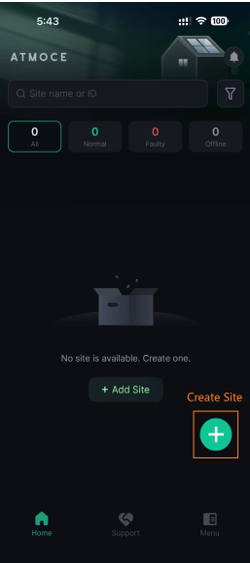
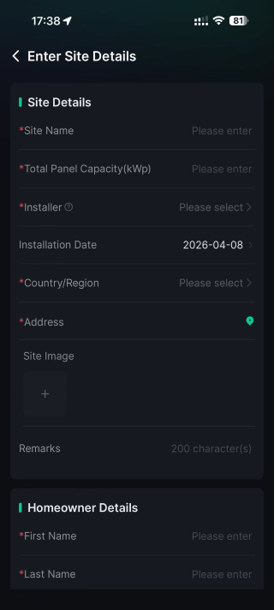
- Enter the Site Details and Homeowner Details, then tick the checkbox, and click Next.
- Detect and select the gateway.
- This is usually automatic and requires a local Bluetooth connection from your device to the gateway.
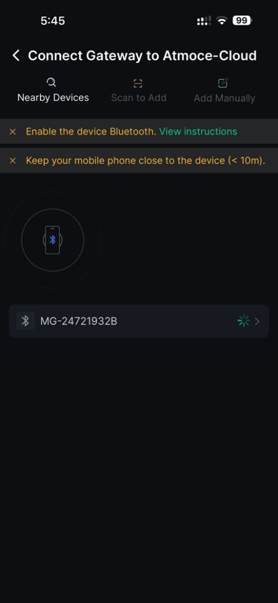
- This is usually automatic and requires a local Bluetooth connection from your device to the gateway.
- Configure the Communication Parameters, tick the checkbox, and click Next.
- The gateway must connected to the internet (2.4 GHz WIFI or Ethernet)
- For temporary iPhone hotspot connections, ensure Maximise Compatibility is enabled.
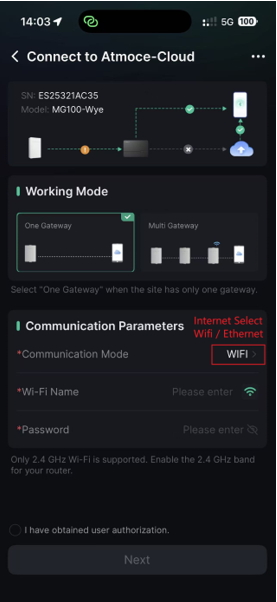
- For temporary iPhone hotspot connections, ensure Maximise Compatibility is enabled.
- The gateway must connected to the internet (2.4 GHz WIFI or Ethernet)
- Detect connected devices and click Next.
- This is usually automatic.
- If all devices are not found, you can still proceed. You will be able to troubleshoot and add manually at a later stage.
- If a device was deleted by accident, add it via Add Manually.
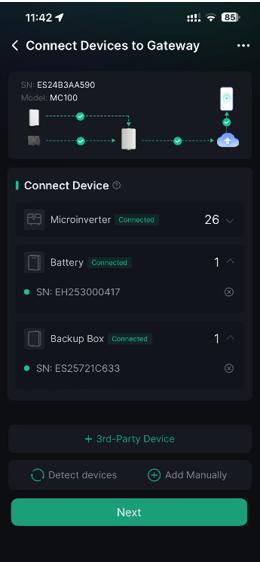
- Click + 3rd-Party Device (if applicable), select the device, enter the required information and click Save.
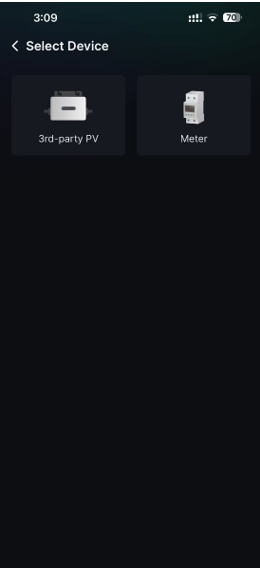
- Select 3rd-party PV (if applicable).
- If using the MC100PRO, the communication method will be CT.
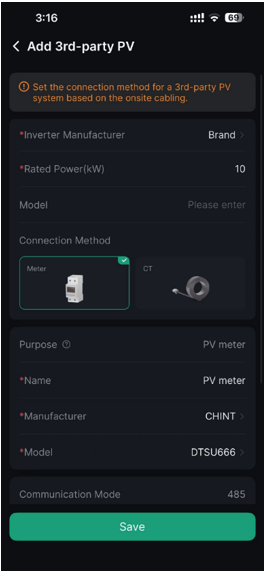
- If using the MC100PRO, the communication method will be CT.
- Select Meter (if applicable).
- If connected via RS485, ensure the communication protocol is set to Modbus RTU, and that the baud rate and device address is consistent with the gateway settings.
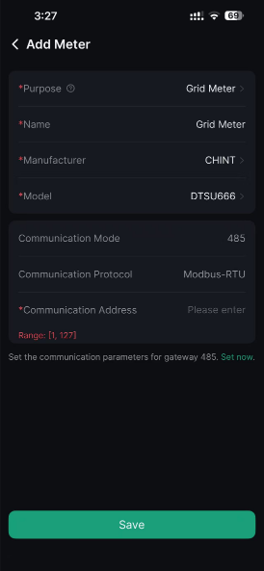
- If connected via RS485, ensure the communication protocol is set to Modbus RTU, and that the baud rate and device address is consistent with the gateway settings.
- Select 3rd-party PV (if applicable).
- Confirm the detected devices, tick the checkbox, and click OK.
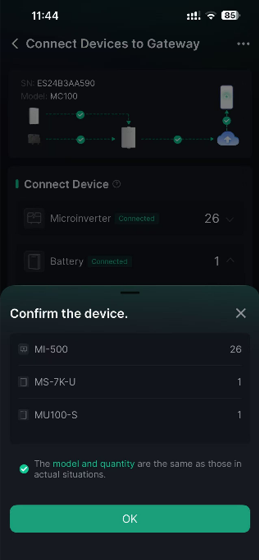
- Select the Grid Profile, Time Settings, and Battery Settings, then click OK.
- Information on Working Battery Modes can be found here.
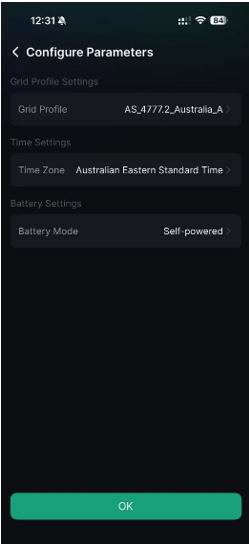
- Information on Working Battery Modes can be found here.
- If microinverters were detected in step 6, you will be given the option to create an array and map out the installations via Create Now.
- Confirm the installation and click Next.
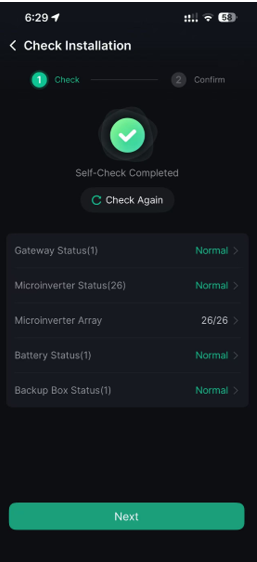
- Mark the actions required and click Complete Check.
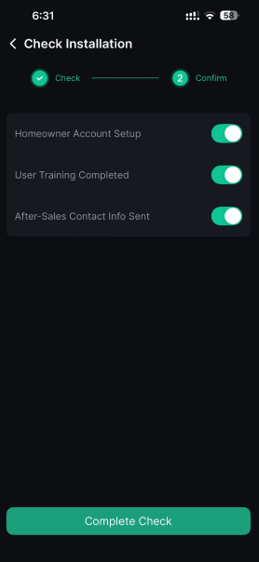
Information in this article was current at the time of publication or last update. Product specifications, software, firmware and procedures may change. Please refer to the latest ATMOCE documentation before proceeding.